Getting started
From empty account to a working relationship system in about ten minutes.
PersonalCRM has one loop: write a note when something happens → the person's timer resets → we surface whoever's overdue. Everything in the product supports that loop. Here's the fastest way to make it yours.
1. Add your first people
Start with 10–20 people whose drift you'd genuinely regret, not your whole address book. You can add them one by one (C → contacts, or the + button), paste a LinkedIn URL to autofill name and photo, or import a file from LinkedIn, Apple Contacts, Google Contacts, Outlook, Notion, or a spreadsheet.
For each person, the fields that matter most:
- Contact frequency: how often you want to be in touch (weekly → yearly). This is the promise you're making; be honest rather than ambitious.
- Birthday: you'll get a reminder three days ahead and on the day.
- Notes: partner's name, what they're working on, how you met. Two lines beat zero lines.
2. Organize with Networks
Networks are your circles (Work, University, Running Club), each with an emoji and an optional description. A contact can be in several. Create them in the sidebar or during onboarding; filter any list by them later.
3. Write your first note
Texted someone? Met for coffee? Hit Add note on their row, write what happened, and pick a type. The type is the one click that matters: 📞 Call and 📱 Text count as being in touch, ☕ Coffee and 📅 Meeting count as having met, and 📝 Note changes nothing at all. Backdate it if you are writing up yesterday.
Several people at the same dinner? Put them all on the one note. It lands on every one of their pages, and resets the timer for all of them at once, so you never log the same evening four times.
Something to do later? Add a Reminder: a dated to-do ("ask how the interview went, Friday"). Tag as many people as it concerns, or nobody, and set it to repeat if it comes back every month.
4. Live in Home
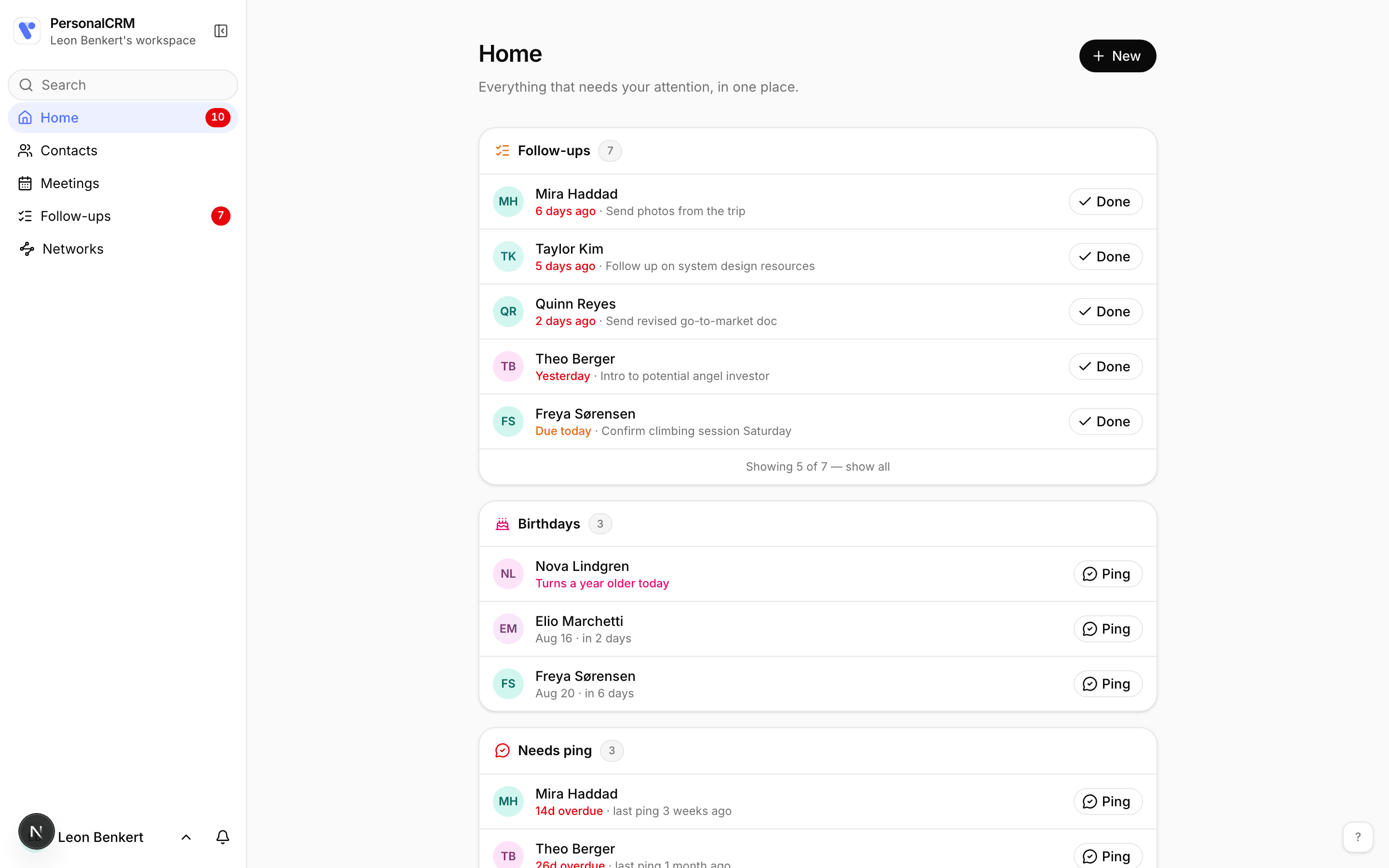
Home is a list you finish, not a dashboard you stare at: Reminders, Birthdays, Out of touch, and Done today. Work through it whenever you like. When it's empty it says "Nothing needs you right now" and leaves you alone.
5. Let the reminders come to you
Enable notifications in Settings (and install the iOS app for lock-screen Pings). Defaults are deliberately quiet: overdue nudges arrive at most once a week. Details in Notifications.
That's the whole system. Ten minutes of setup, then ten minutes a week.